Publishing a Flutter App to the Microsoft Store
Microsoft Store has finally removed the registration fee for individual developers. They promised this back in June, and I didn’t get it until November. But free is always good — one more distribution channel means I no longer have to hide in the dark corner of GitHub to release my work.
Microsoft’s documentation already explains the submission process very clearly:
So I won’t repeat the official steps here — instead, I’ll just share some of the important tips and pitfalls.
Developer Account Registration
During registration, you’ll need to verify your identity, which means taking photos of both sides of your ID card and a selfie.
- The verification process requires scanning a QR code on your PC to continue on your phone.
- The capture page does not support Firefox. You must use Chrome, Edge, or Safari.
- I recommend washing your hair before the selfie. The capture speed is insanely fast — it took the photo instantly without giving me any preview, so it caught my oily hair perfectly…
Creating a New Product
After reserving the app name, go to Product Identity in the left sidebar to get the packaging information. You need to fill the following three fields into the MSIX configuration:
- Package/Identity/Name →
identity_name - Package/Identity/Publisher →
publisher - Package/Properties/PublisherDisplayName →
publisher_display_name
Creating an MSIX installer
Flutter officially recommends the following packaging tool: msix | Dart package
Install:
1 | flutter pub add --dev msix |
Create the configuration field in pubspec.yaml. My configuration looks like this:
1 | msix_config: |
Run the packaging commands:
1 | flutter clean |
Creating the App Submission
- Pricing and Availability: Set the currency and retail price in the Market Group. Setting one currency is enough — Microsoft will handle the conversion automatically.
- Packages:
- Upload the package first, then fill out other information. Some fields are auto-generated based on the uploaded package.
- After uploading, you’ll see the warning: Package acceptance validation warning: The following restricted capabilities require approval before you can use them in your app: runFullTrust.
Don’t worry about it — Flutter desktop apps require this capability after MSIX packaging. We’ll explain it later.
- Properties:
- Privacy Policy: I selected No before uploading the package, but it automatically changed to Yes after upload. This might be because my import/export feature accesses local files. Don’t override it manually.
- Privacy Policy URL: Ask an AI to write one, upload it to your GitHub repo or GitHub Pages, and paste the link here.
- Store Listings:
- Write your description, screenshots, and other details. You must provide content for every language you listed earlier — this is the most time-consuming part and the best job for AI.
- Note that this section does not support Markdown syntax. I got tricked by an AI once, but I’m too lazy to fix it now — it’s still readable anyway.
- Submission options: The Certification Notes section has some hidden pitfalls:
- Flutter apps packaged as MSIX always require the following explanation: You need to request approval before using the restricted capability: runFullTrust. Why do you need runFullTrust, and how is it used in your product?
- You must explain why runFullTrust is required. See my certification notes template below for details.
- And there seems to be a bug: you may need to include the exact text
Why do you need runFullTrust, and how is it used in your product?in the notes. Before adding this sentence, my submission kept showing as incomplete. - There is a hidden character limit in the text box. If you paste too much text, the overflowing part will silently be cut off.
- My Certification Notes template:
1
2
3
4
5
6
7
8
9
10
11
12
13
14Cycle It is an open-source, free Flutter application. All features run offline on the local device. The project is available at https://github.com/Siriusq/cycle_it
Testing Notes:
* After installation, the app can be launched normally from the Start Menu.
* No test account is required, and no network connection is needed.
* The app does not collect, upload, or share any personal data.
* All data is stored locally in a SQLite database.
* The app launches directly to the main interface (Item List page).
* If the user manually enables notifications, the app will send Toast notifications at user-defined times.
* When the user taps “Check for Updates”, “Privacy Policy” or “User Guide”, the default browser will open the corresponding GitHub page.
* The UI layout adjusts automatically based on window width.
Why do you need runFullTrust, and how is it used in your product
This application uses Flutter to build the Windows desktop version, which is a Win32 app. To allow the Win32 main process to run correctly after MSIX packaging, runFullTrust is required. It is used solely to launch the Flutter desktop executable.
Submit for certification
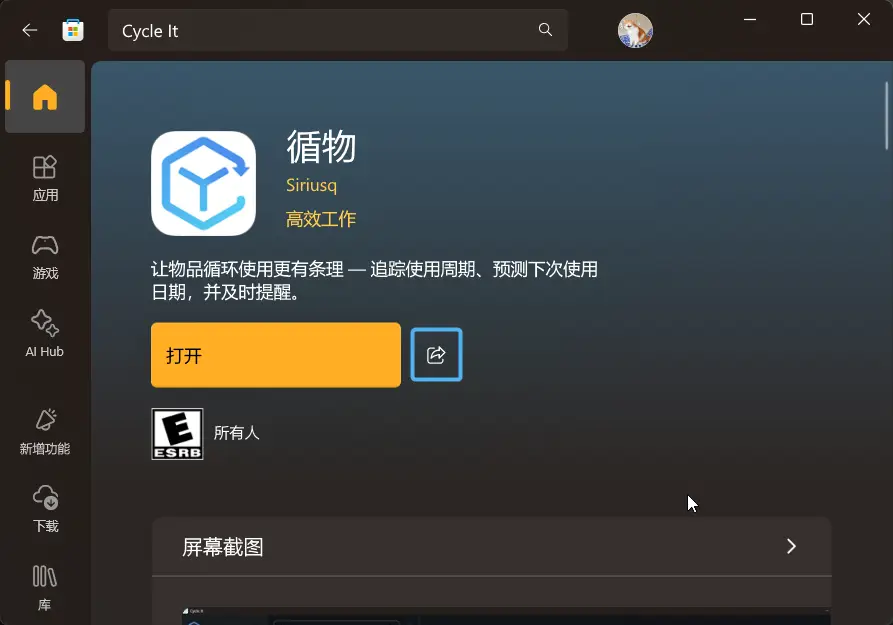
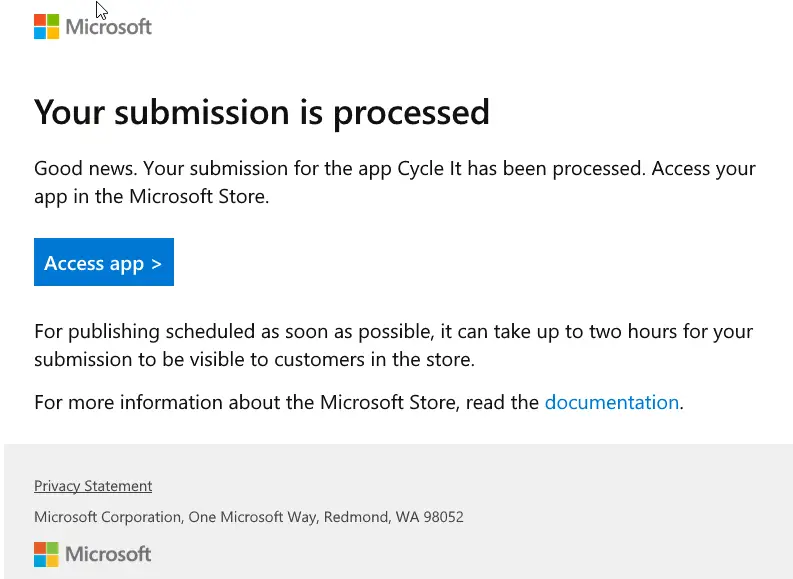
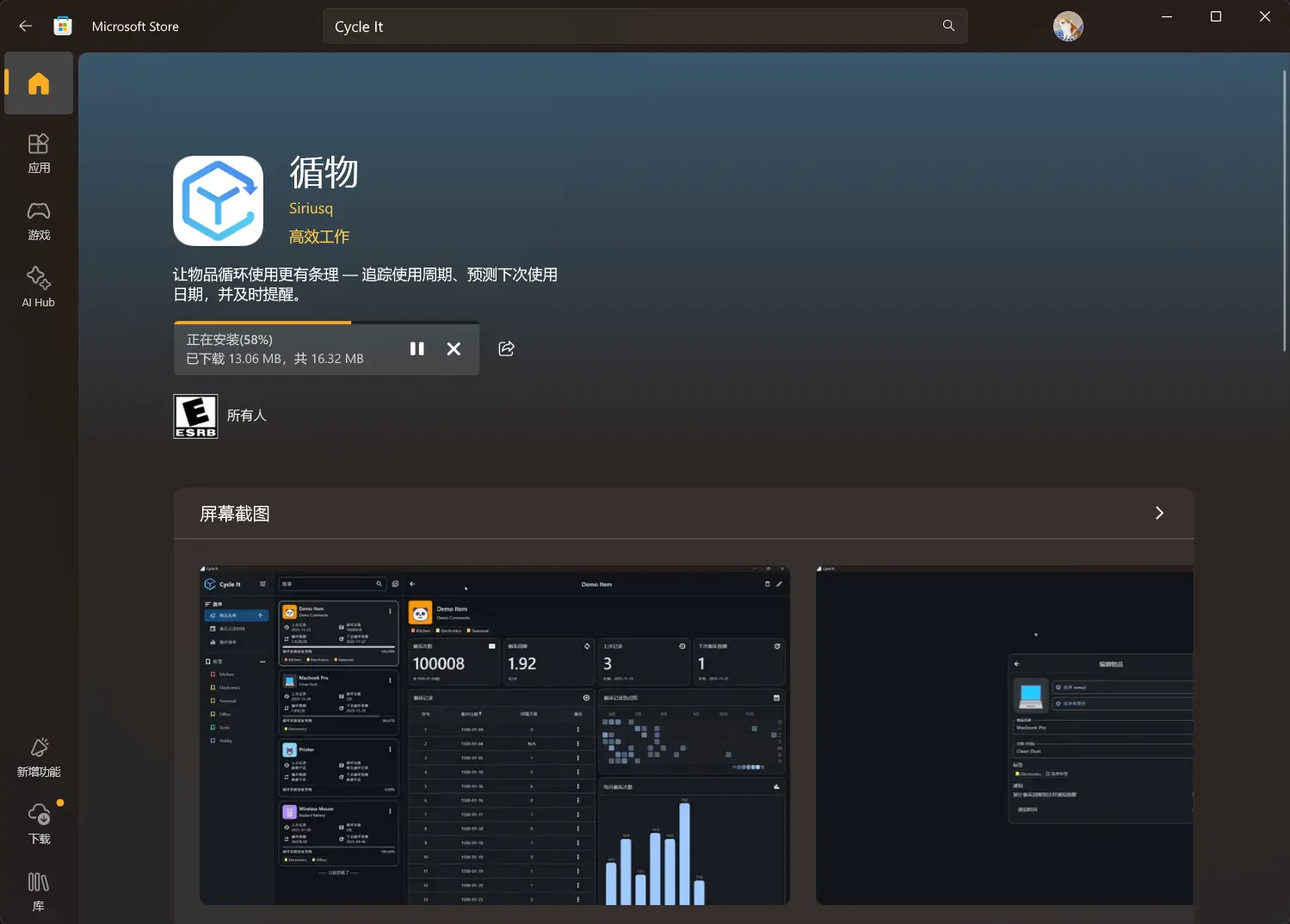
After submitting for certification, you’ll need to wait up to three business days for Microsoft’s review. Even though I submitted mine on Friday night, it actually passed on Saturday evening — maybe someone was working overtime? A few minutes after receiving the approval email, my app became searchable in the Microsoft Store. Yay!
Generating an App Badge
We often see badges like the one below, which link directly to the app’s Microsoft Store page when clicked.

Here’s how to generate one for your own app:
- Open your app’s page in the Microsoft Store.
- Click the Share button and copy the link.
- Paste the link into your browser’s address bar and open it.
- Scroll to the bottom of the page.
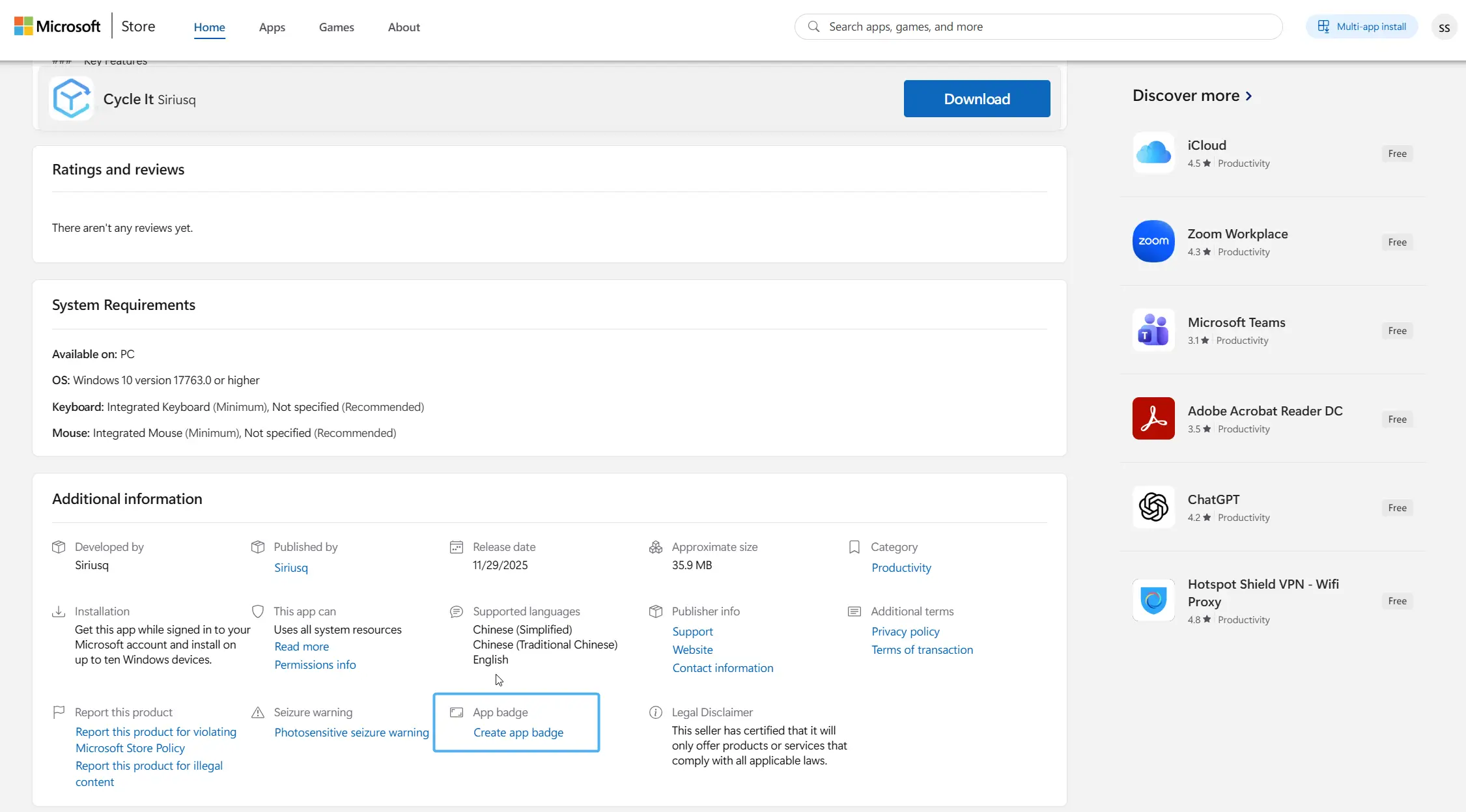
- Click Create app badge.
- Select the Non-JavaScript badge option.
- Copy the generated code into your README.